Common area maintenance
How do I attach an invoice to a CAM expense in LOXA?
Upload the supporting document while adding or editing the expense. The invoice is linked to the line item.
Before you start
- You need access to the Common area maintenance workflow in your LOXA role.
- Have vendor invoice PDF or image ready before you begin.
Step by step
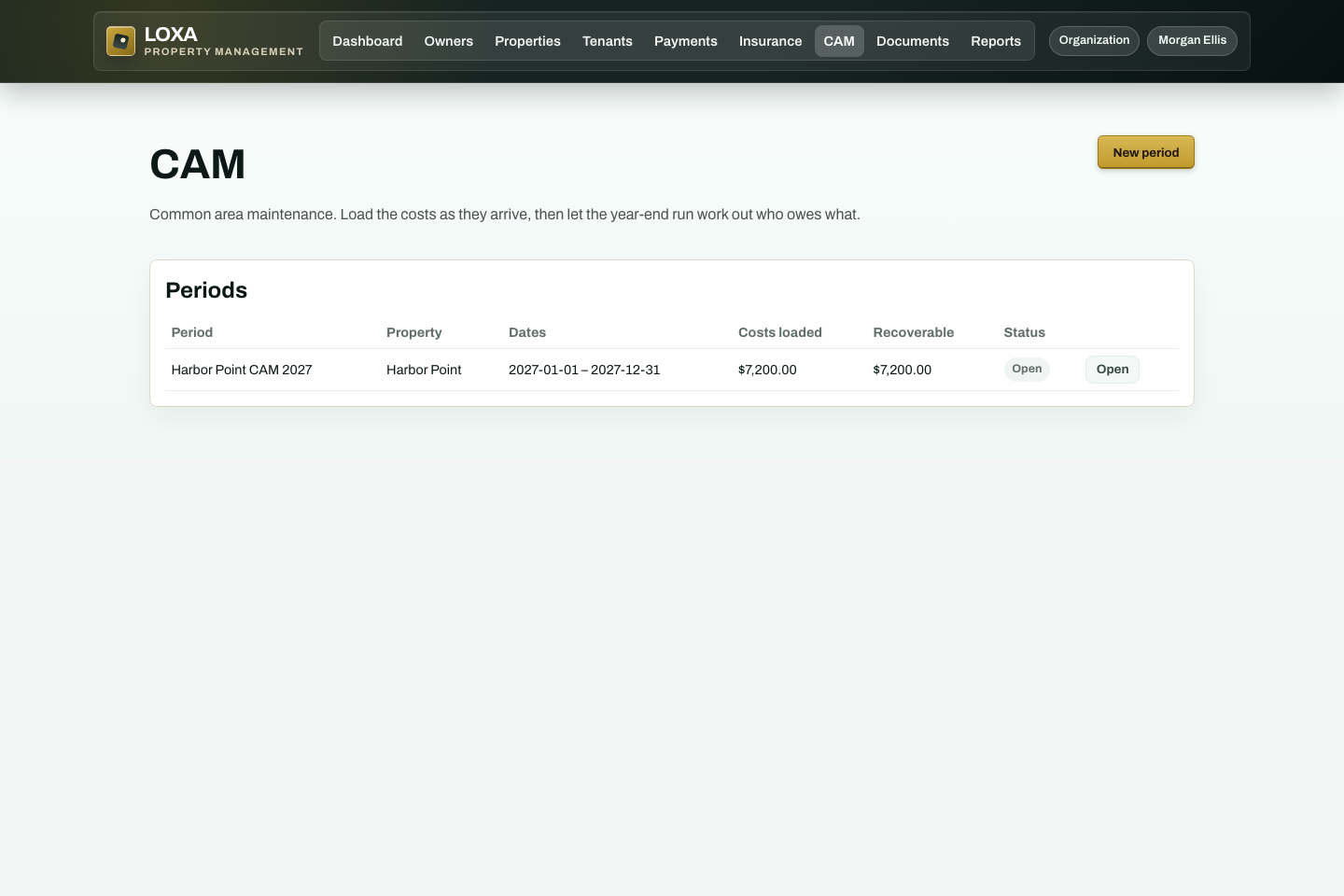
Sign in to LOXA and open Common area maintenance.
Upload the supporting document while adding or editing the expense
Enter or review vendor invoice PDF or image.
Review the record and select the available save, confirm, or continue action.
Verify that the invoice is linked to the line item.
What should happen
The invoice is linked to the line item.