Plans and billing
How do I compare available plans in LOXA?
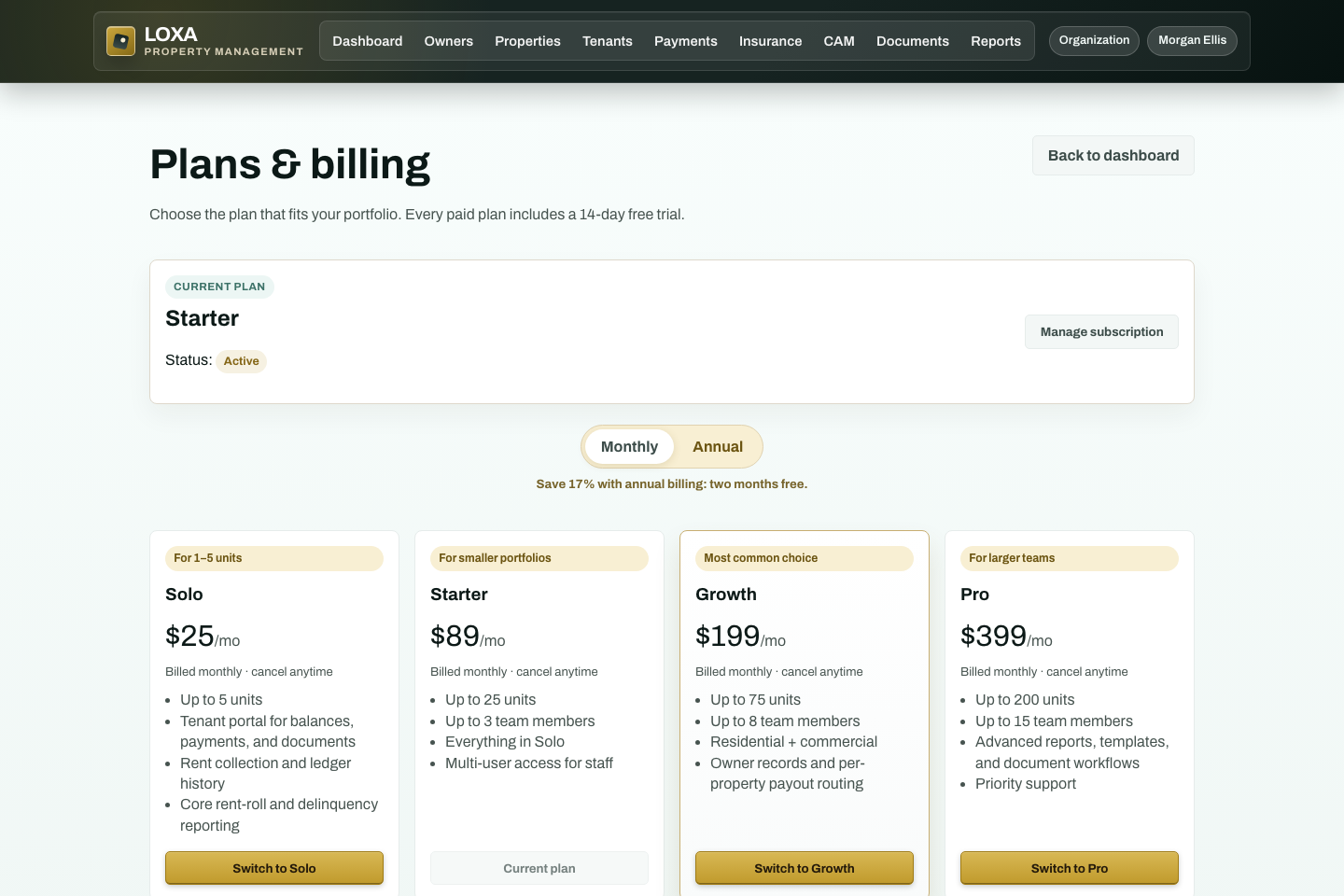
Open Billing or Pricing and compare unit limits and included capabilities. You can choose a plan that fits the unit count.
Before you start
- You need access to the Plans and billing workflow in your LOXA role.
- Have current and expected portfolio size ready before you begin.
Step by step
Sign in to LOXA and open Plans and billing.
Open Billing or Pricing and compare unit limits and included capabilities
Enter or review current and expected portfolio size.
Review the record and select the available save, confirm, or continue action.
Verify that you can choose a plan that fits the unit count.
What should happen
You can choose a plan that fits the unit count.